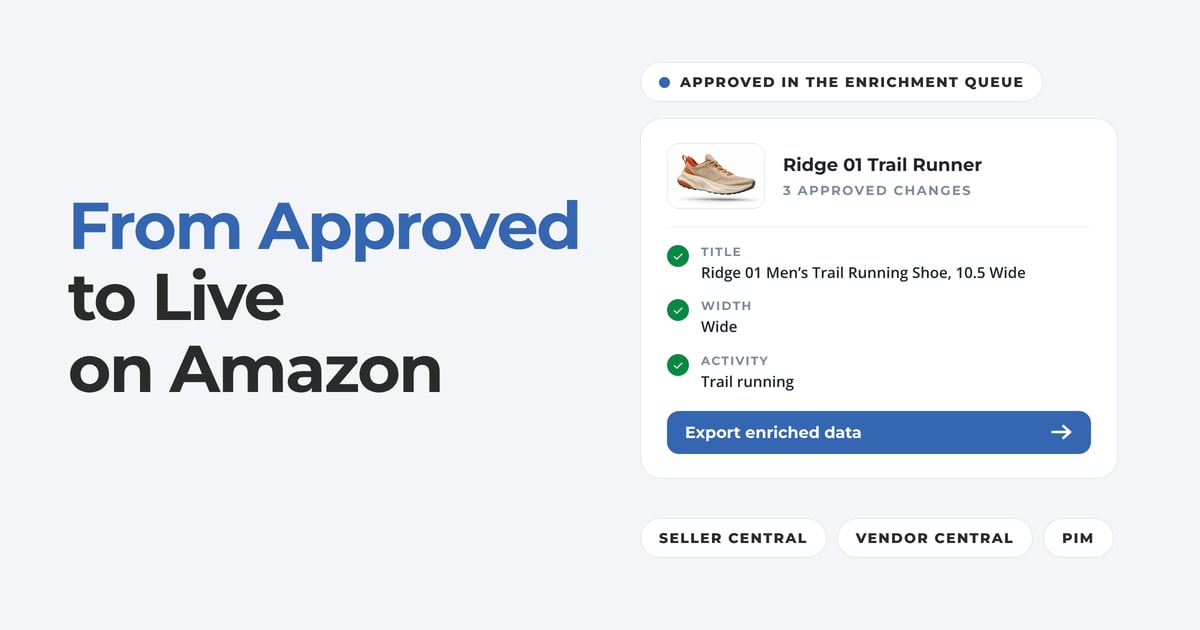
Approving a better title doesn't help a shopper until it's on the listing. Here's how to take the fixes your team approved in ReFiBuy for Amazon and get them live, using the workflow you already have.

This how-to is part of All Eyes on Amazon, our two-week series on getting your listings ready for Alexa for Shopping before Black Friday. Enrich suggests the fixes, your team approves them in the Enrichment Queue, and Deliver is the last step: getting those changes onto Amazon. Approving a better title doesn't help a shopper until it's on the listing.
Get your fixes live in five steps
Step 1
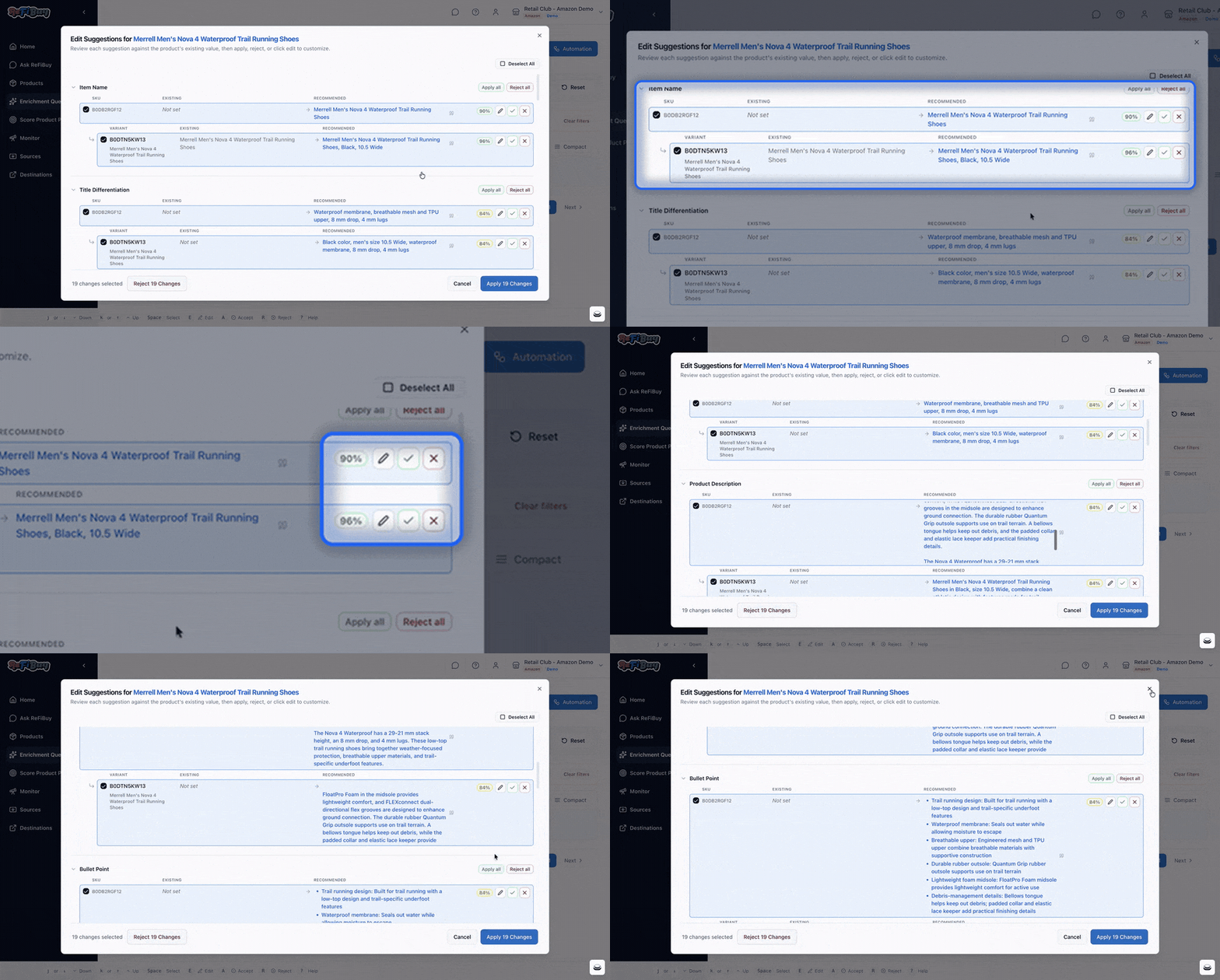
Approve your changes in the Enrichment Queue
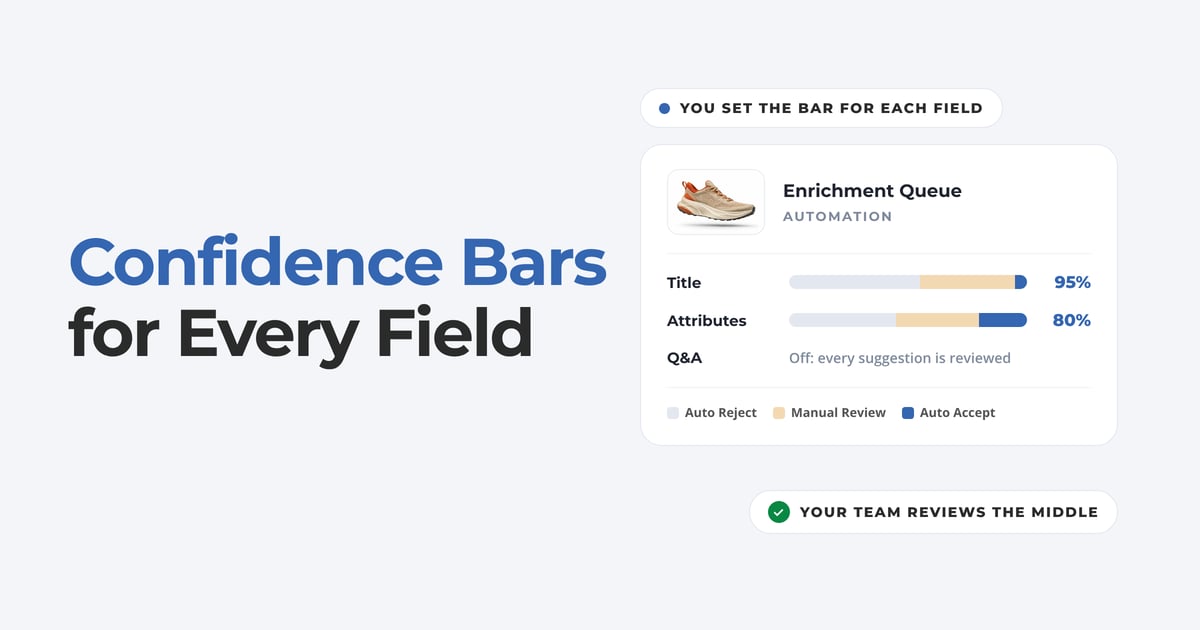
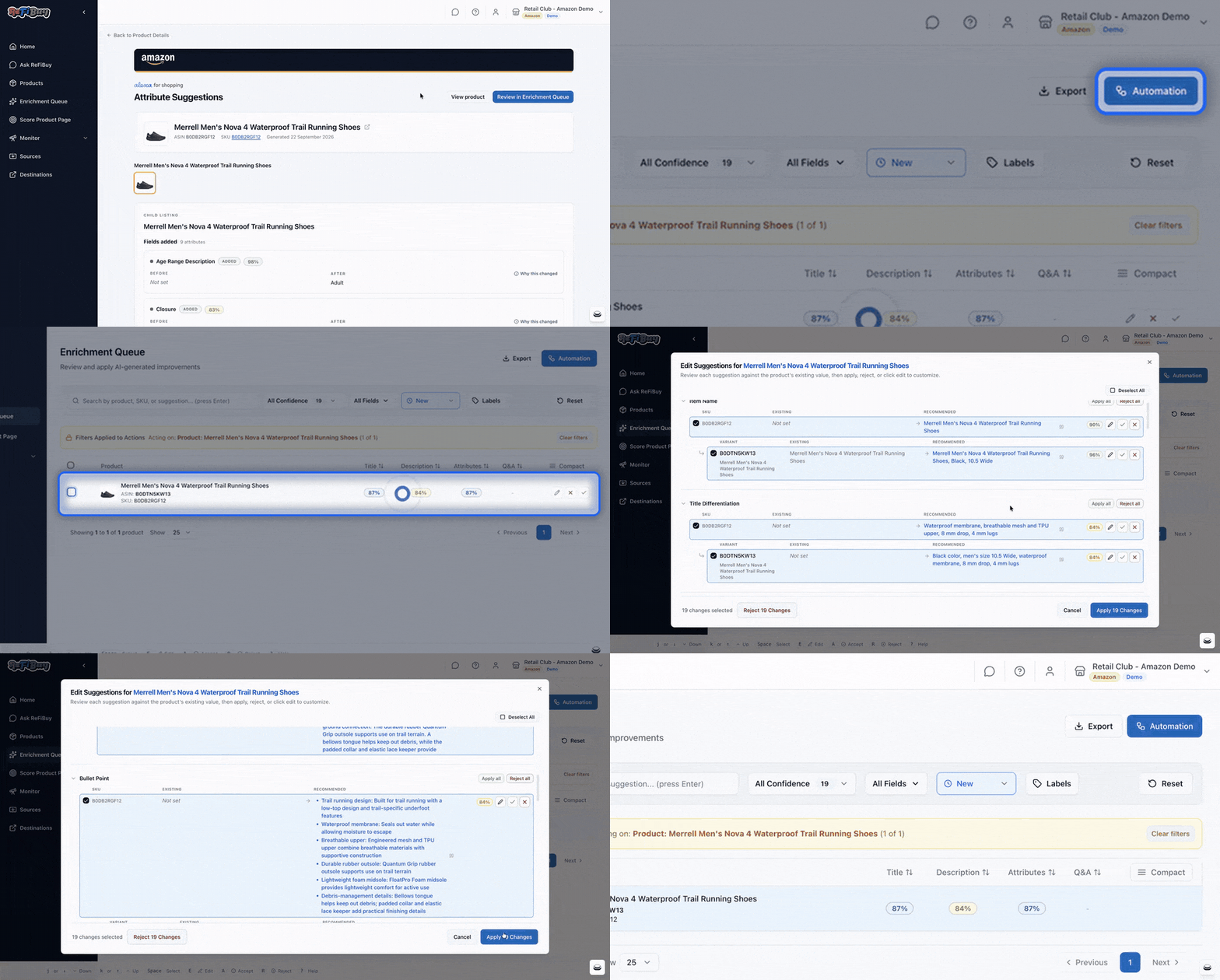
- Review what's waiting, or let Enrichment Queue Automation clear the confident suggestions for you.
- Accept, edit or reject each one, one at a time or a whole field at once. Only approved changes move on.
Step 2
Filter to what you want to send
- Use the queue's filters to narrow down by confidence, by field or by status.
- Most teams send one batch per category or per brand, so each upload is easy to check.
Step 3
Export the enriched data
- Click Export to download a feed of your approved, enriched product data.
Step 4
Load it where you already work
- Upload the export through the Seller Central, Vendor Central or product information management (PIM) workflow your team already uses.
- Nothing about how you publish to Amazon has to change.
Step 5
Check your scores again
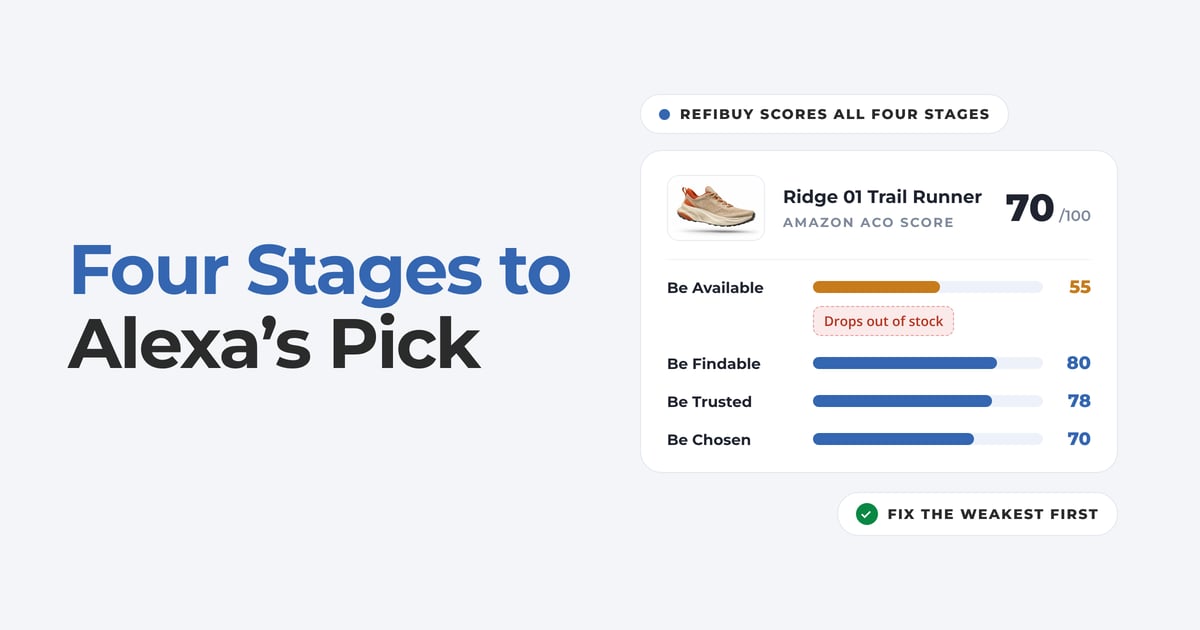
- Once the changes are live, run the products through Evaluate again to see how their scores have moved.
- Check what's still waiting in the Enrichment Queue.
Start with one product
Want to see which fixes would matter most? Get your free Amazon Agentic Commerce Optimization (ACO) Report before Black Friday.